Automated actions in the Leads module
Last updated 19 days ago
In this manual
Automatic task after lead status change
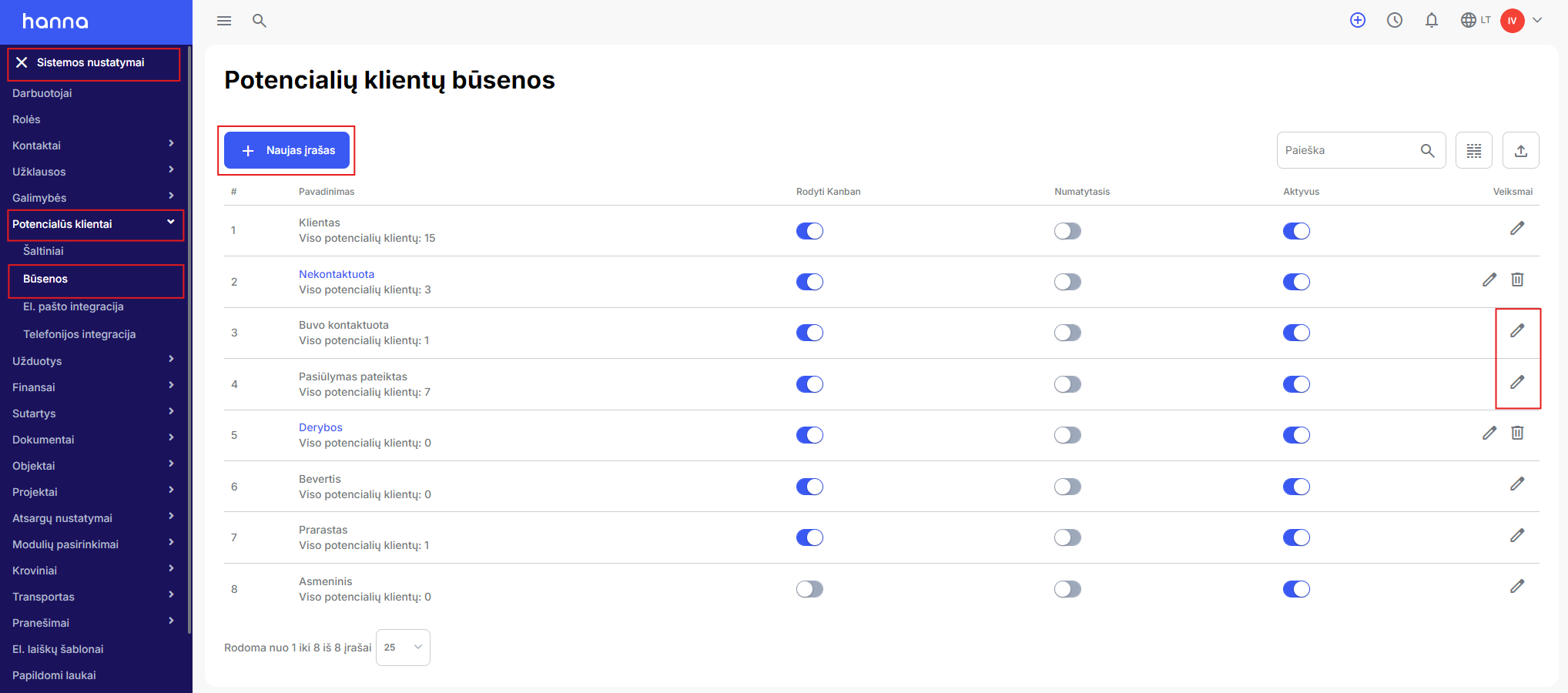
Changing the status of a lead can automatically create a task in the system. First, create task templates, you will find how to do thisin this manual.
Then chooseSystem Settings - Leads - Statuses - New entryor choose to edit an already created status:
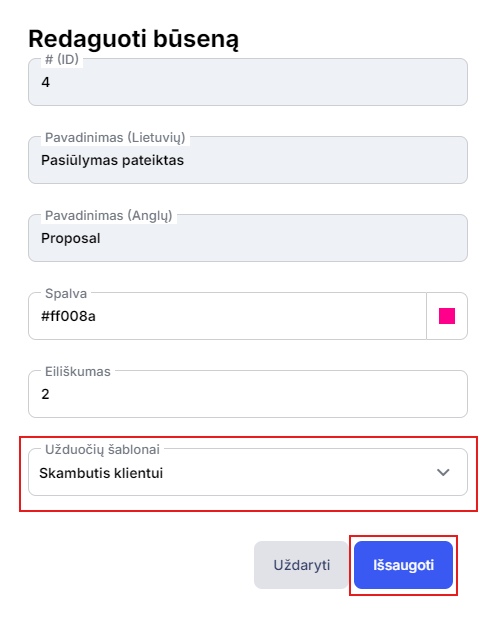
Specify the task template and save the changes:
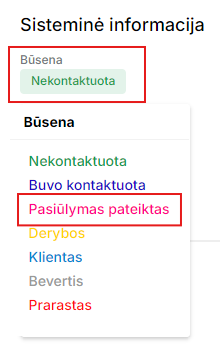
Then when the lead changes status:
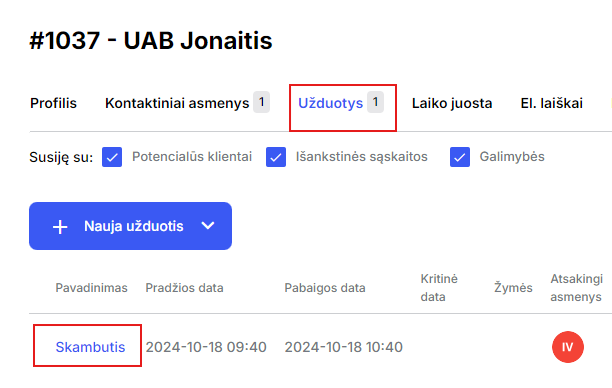
In his card, a task will be automatically created according to the template you choose:
Automatic lead generation
In the lead system, you can enable automatic opportunity creation as soon as you create a new lead - the system will automatically create an opportunity for him.
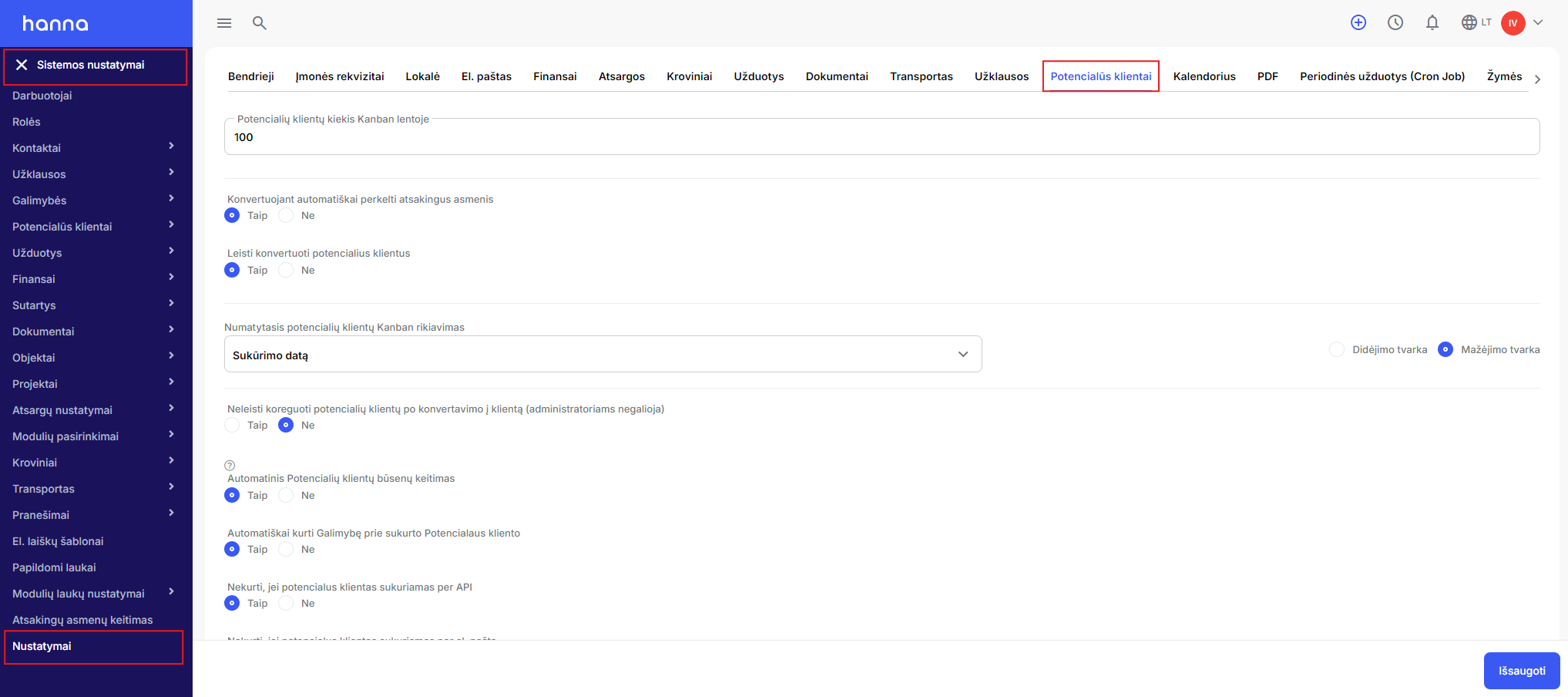
First, enable the setting that will create an automatic opportunity. ChooseSystem Settings - Settings - Leads:
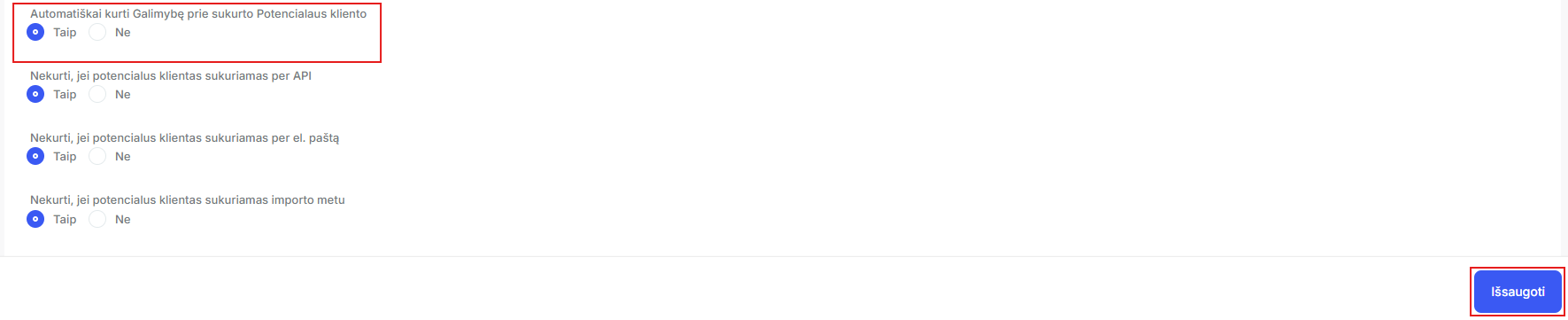
At the bottom of the page, enable the settingAutomatically create an Opportunity to a created Leadand save the changes:
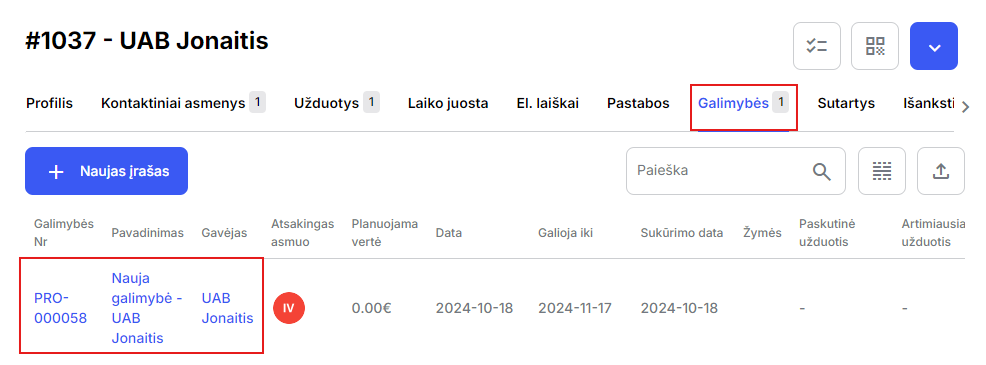
After enabling the setting and creating a new lead, the system will automatically create a new opportunity on his card:
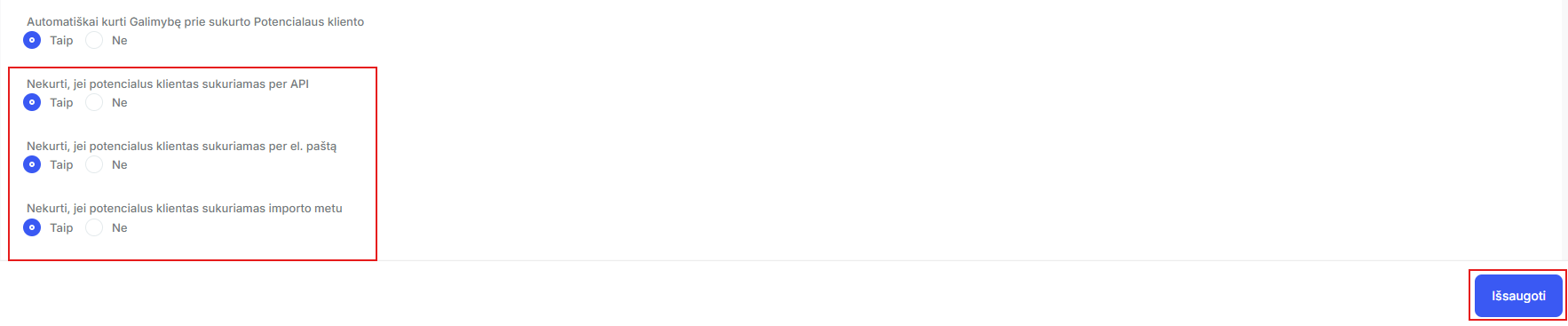
You can also enable the settings so that the system creates an automatic opportunity when a new lead:
- created via API synchronization;
- created via email integration;
- is created during import.
Locking lead statuses
In the system, lead statuses can be changed automatically when an opportunity is created, an email is received. a letter or a call.
ChooseSystem Settings - Settings - Leads:
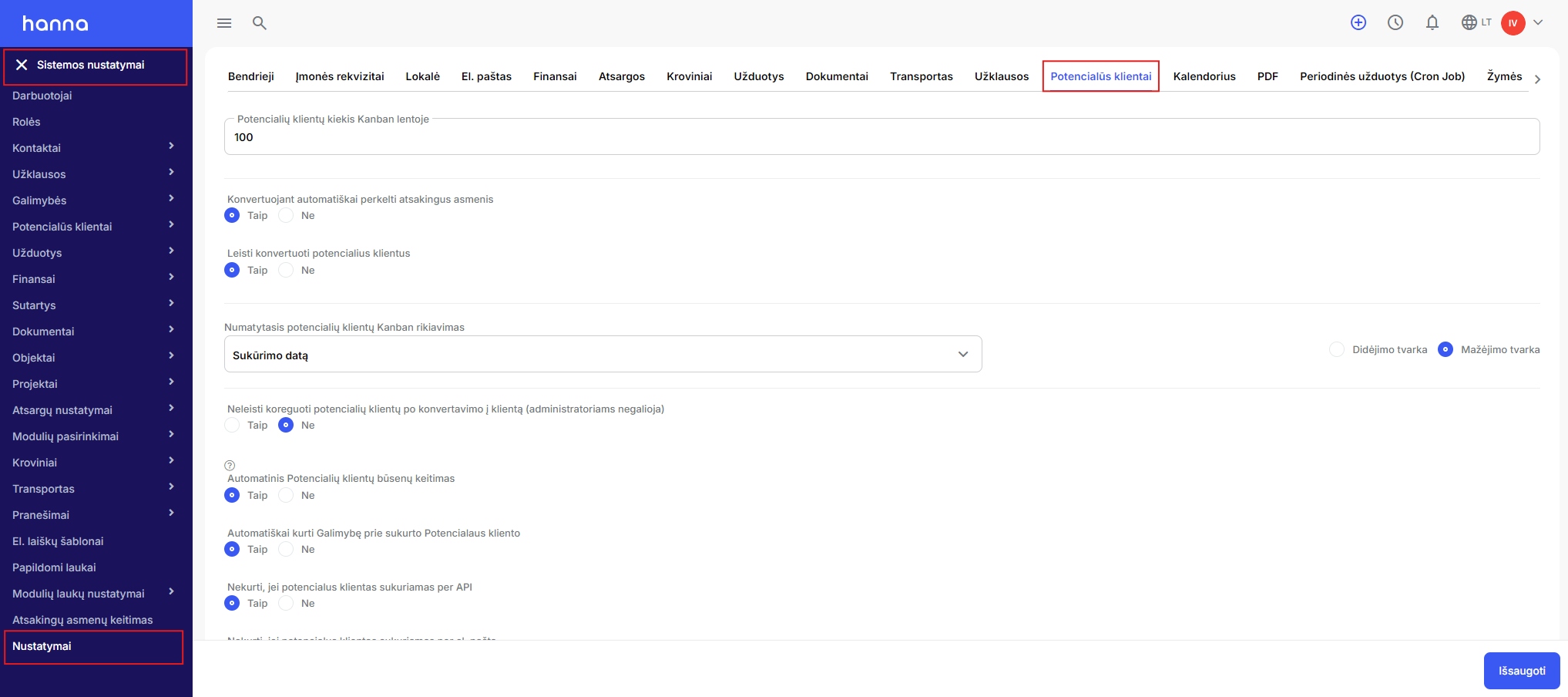
Below on the page you will find the settingEnable automated changing of customer statusesselectYesand save the changes:
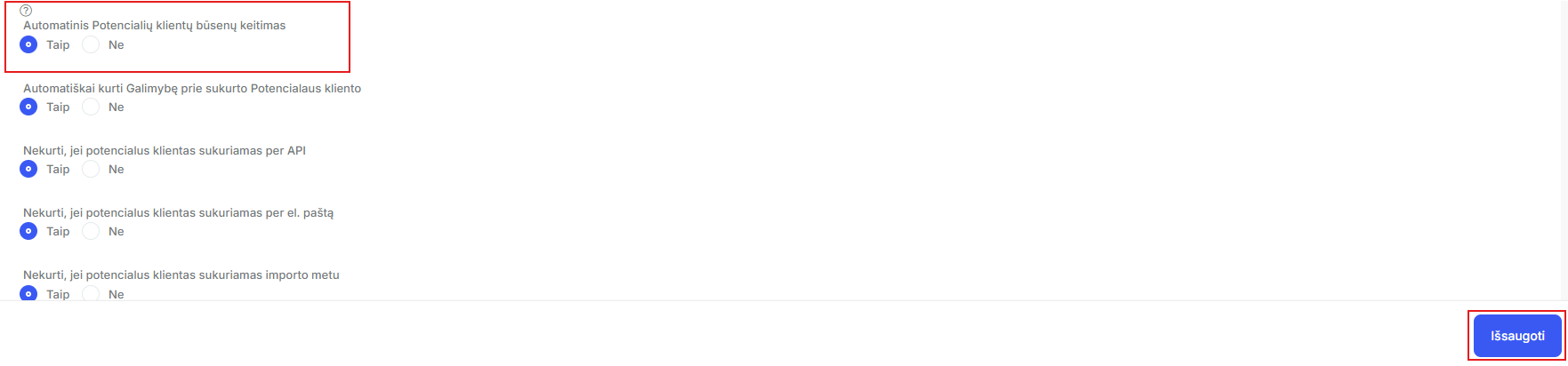
The lead status will automatically change to:
- Was contacted - if you will communicate with the customer by mail or during a call, if e-mail is enabled. for mail synchronization or telephony;
- Offer submitted - when you assign an opportunity to a lead.
Was this helpful?
Still need help? Ask the team