Bulk actions and data management
Last updated 19 days ago
In this manual
- Data export and printing
- Data import
- Mass task creation for potential clients and contacts
- Mass email sending emails to selected contacts
- Bulk data deletion
- Bulk actions in modules
In the system, you can see the bulk in each moduleActionsbutton with which you can import data, change customer information, delete records, etc.
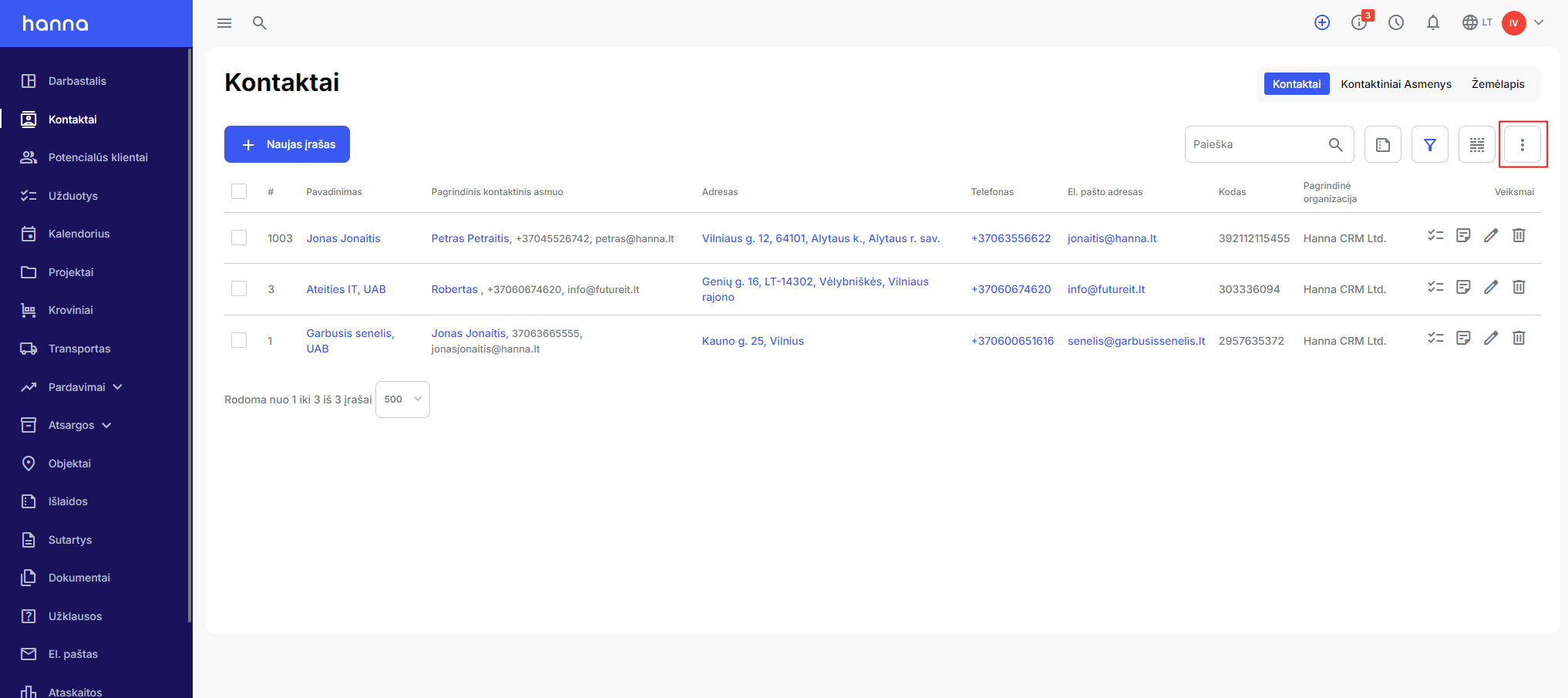

Data export and printing
You can export and print data in system modules. Select the specified Actions button and place the mouse cursor on the export button, then the system will display the export and print buttons:
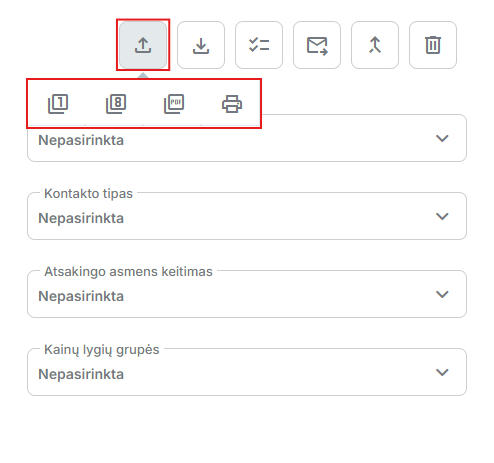
Data import
In the system, you can import data into various modules (Contacts, Leads, Products, etc.) Move the mouse cursor over the import button and select the relevant import option:
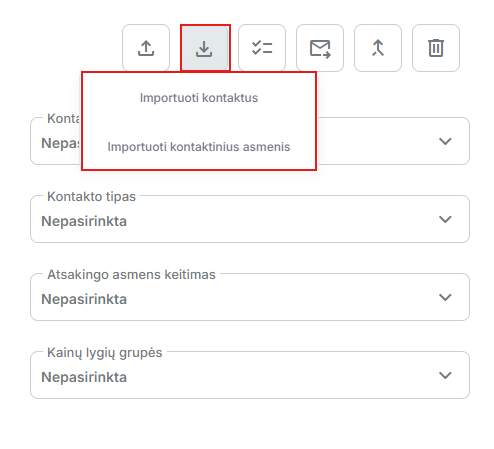
Read more information on how to import data into the systemin this manual.
Mass task creation for potential clients and contacts
You can create a task for leads or contacts through a bulk action. A separate task will be created for the selected customers or contacts. Select the bulk action button and select the task creation option:
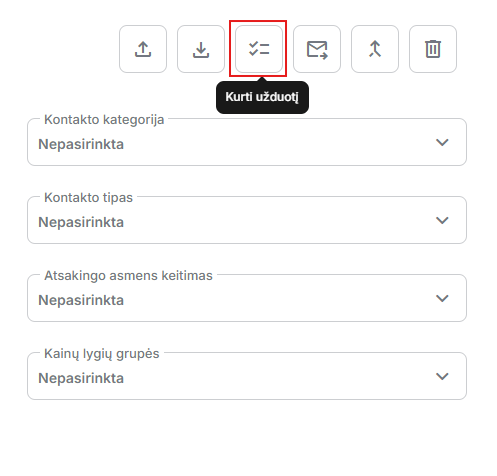
You can find more information on how to create bulk tasksin this manual.
Mass email sending emails to selected contacts
This feature allows bulk email sending emails to selected contacts at once. Select the required contact records, then select the bulk action button and select the Send email option. letter:
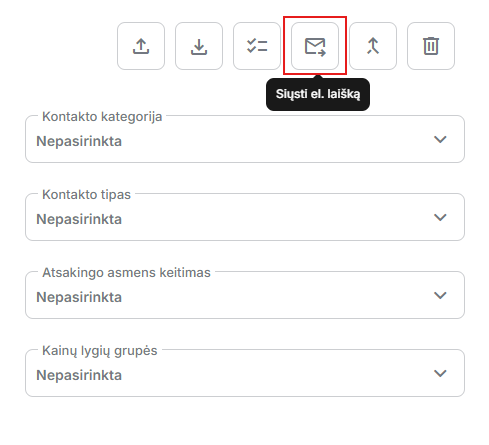
More information on how to send bulk emails. you will find the letters for contactsin this manual.
Merging contacts or leads into one
You can combine contacts or leads into a single customer. After merging customers, all existing information remains with them.
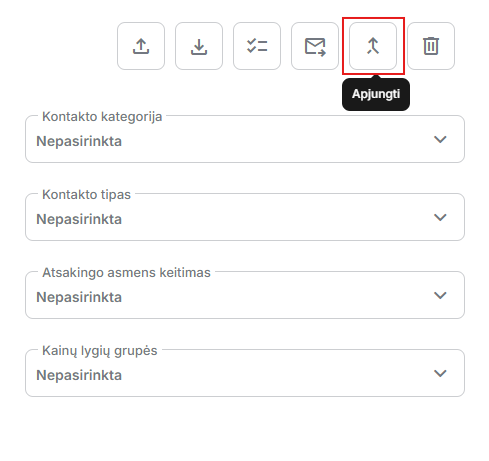
- More information on how to merge Contactsread here.
- More information on how to combine Leadsread here.
Bulk data deletion
To mass delete all records in a module, select the records and select the delete button:
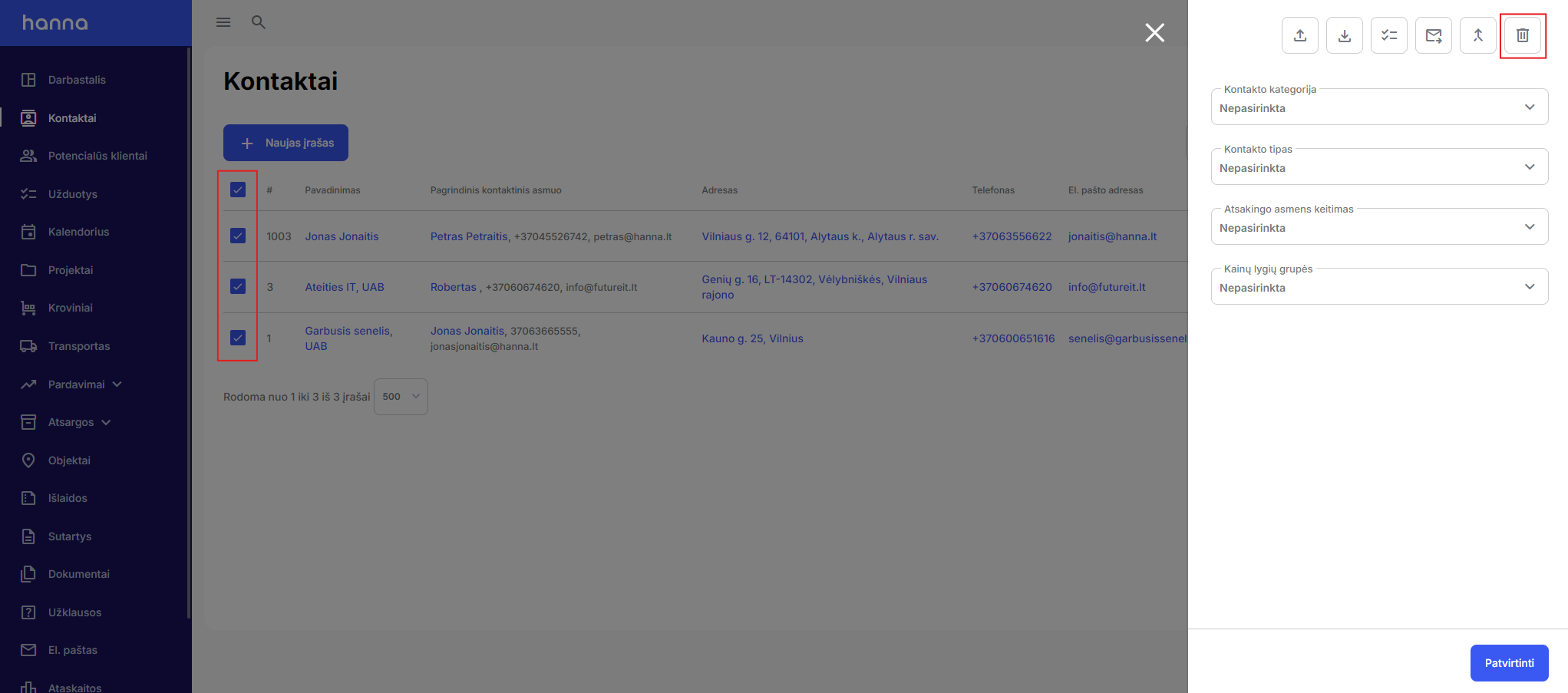
Bulk actions in modules
In each module, the functions of mass actions differ depending on the module's characteristics.
Was this helpful?
Still need help? Ask the team